Typing Thai in Google Docs, Word, and Notion: Why the Same Text Feels Different
Put these editing habits to work with the office-message practice pack. Choose a short request or a longer handover, then practise keeping vowels and tone marks in order before checking the same text in your own editor.
A Thai sentence may be typed with the same Kedmanee keyboard, by the same typist, on the same computer, and still feel different in Google Docs, Microsoft Word, Notion, or another editor. The difference is usually not the keyboard layout. It is the text engine: how the editor stores Thai characters, moves the cursor, breaks lines, selects text, deletes marks, checks spelling, and searches inside the document.
This article is not a feature comparison that claims one app always behaves in one exact way. Versions change, language settings differ, browser behavior matters, fonts matter, and operating systems can affect typing. Instead, this is a checklist-style guide for Thai touch typists. The goal is to know what categories to verify in your own current version before using an editor for long Thai documents, mixed Thai-English notes, formal reports, or collaborative writing.
Same keyboard, different text engine
Kedmanee decides which character appears when you press a key. The editor decides what happens after the character enters the document. These are separate layers. A learner may blame the keyboard when the real issue is that the editor moves the cursor in an unexpected way, wraps a Thai line awkwardly, deletes only part of a syllable, or fails to recognize a Thai word during spell-check.
Thai text gives editors more work than plain left-to-right Latin text. A Thai syllable may include a base consonant, an above or below vowel, and a tone mark. Pre-posed vowels เ แ โ ใ ไ are typed before their consonant, just as they appear before it in the written syllable. The training order inside a syllable is pre-posed vowel, base consonant, above or below vowel, then tone mark. An editor must display and navigate this structure in a way that feels natural to the writer.
- Keyboard layer: produces Thai characters from the Kedmanee layout.
- Text engine layer: displays characters, marks, and stacked syllables.
- Navigation layer: decides how the cursor moves through Thai text.
- Editing layer: decides what Backspace, Delete, selection, and replacement do.
- Language layer: handles word breaking, spell-check, autocorrect, and search.
Thai line breaking needs segmentation
Thai is normally written without spaces between words. Spaces are used, but not in the same word-by-word way as English. This means an editor cannot rely only on visible spaces to decide where a line should break. It often needs some form of dictionary-based or rule-based segmentation to choose reasonable break points. Different editors, versions, or settings may segment Thai differently.
This matters in real documents. A Thai line that wraps naturally in one editor may wrap awkwardly in another. A heading may look balanced in one app but break after an unnatural syllable in another. A narrow table cell, comment box, mobile view, or sidebar can expose line-breaking problems that are not visible in a wide page view.
The practical test is simple: paste or type several Thai sentences without manual spaces inside phrases, then narrow the window or put the text into a table column. Watch where the editor breaks the line. The question is not “Does this app support Thai?” in a general sense. The more useful question is “Does this editor break Thai lines acceptably for the kind of document I need?”
- Test a normal paragraph with no artificial spaces between Thai words.
- Test a heading with formal or compound Thai wording.
- Test a narrow table cell or side panel.
- Test mixed Thai-English text with product names, numbers, and abbreviations.
- Test the same text after export or copy-paste, if that is part of your workflow.
Cursor movement across stacked syllables
Thai cursor movement can feel different because what looks like one visual unit may be stored as several characters. A syllable may contain a base consonant plus marks above or below it. Tone marks in Kedmanee are all pressed by the right index finger: ่ and ้ on the home row, and ๊ and ๋ on the Shift layer. When these marks are displayed above a consonant, the writer expects the cursor to move in a way that respects the visible syllable.
However, editors may differ in whether arrow keys move by displayed cluster, stored character, word-like unit, or another boundary. This is why the same Thai word can feel smooth in one writing area and slightly mechanical in another. The issue becomes more noticeable when editing inside a word rather than typing continuously.
To test this, type a sentence containing stacked marks, such as a sentence with ที่, ได้, ให้, ไม่, and เป็น. Move the cursor left and right through the text one step at a time. Then click inside a syllable and use the arrow keys. The editor is suitable for serious Thai writing if movement feels predictable enough that you can correct text without damaging nearby vowels or tone marks.
Backspace, Delete, and selection
Backspace behavior is one of the most important things to test. In Thai, deleting one visible syllable may require deleting a sequence of stored characters. Some editors may delete a whole visible cluster in one action, while others may remove one component at a time. Neither behavior is automatically wrong, but the writer must know what will happen before editing important text.
Selection has a related problem. Dragging across Thai text or holding Shift with arrow keys may select a complete visible unit, or it may stop in the middle of a cluster. A partial selection can leave a vowel or tone mark separated from its base consonant. That kind of error is easy to miss visually when the document is long.
- Type a short Thai sentence with vowels and tone marks.
- Place the cursor after a word such as ที่, ได้, or ไม่.
- Press Backspace once and observe whether the result is predictable.
- Undo, then select the same word using keyboard selection.
- Replace the selection with another Thai word and inspect the surrounding characters.
For long documents, predictable editing matters more than clever editing. A typist can adapt to either cluster-level or component-level deletion if the behavior is consistent. The dangerous case is not knowing what the editor did. After deleting or replacing Thai text, pause briefly and read the whole word, not only the character near the cursor.
Spell-check and autocorrect are not a proofreader
Thai spell-check, grammar assistance, and autocorrect depend on the editor, language settings, installed dictionaries, account configuration, browser, operating system, and document language. Therefore, it is unsafe to assume that Google Docs, Word, Notion, or any other app will catch the same Thai errors in the same way for every user. You should verify spell-check behavior in your own version.
A good test is to create a small document with correct Thai words, intentionally misspelled Thai words, formal phrases, names, abbreviations, and mixed Thai-English lines. Then observe what the editor marks, what it ignores, and what it tries to change automatically. Pay special attention to official terms, proper nouns, product names, and technical vocabulary because these are often outside ordinary dictionaries.
- Check whether Thai spell-check is active for the document language.
- Test ordinary Thai words and formal Thai phrases.
- Test names, agency names, product names, and technical terms.
- Test abbreviation forms such as กรุงเทพฯ, ฯพณฯ, and พ.ศ.
- Watch whether autocorrect changes Thai punctuation, spacing, or repeated characters unexpectedly.
The safest habit is to treat spell-check as a warning system, not as a final authority. It may help catch obvious mistakes, but it may also miss real errors or flag correct specialized words. For Thai touch typing practice, manual review remains essential: read the sentence aloud silently, compare fixed phrases with a trusted template, and check marks around stacked syllables.
Find-and-replace with Thai text
Find-and-replace is useful in Thai documents, but it requires care. Thai text may contain repeated formal phrases, names, dates, and abbreviations. A search may find exact text, but it may not understand the writer’s intention. If a phrase appears inside a longer phrase, replacing it blindly may create new errors. If spacing differs between two occurrences, one version may be found and another may be missed.
Test find-and-replace with ordinary Thai words, words with tone marks, words with pre-posed vowels, and formal abbreviations. For example, try searching for เรียน, หนังสือเวียน, กรุงเทพฯ, พ.ศ., and มาตรา. Then test longer phrases such as จึงเรียนมาเพื่อโปรดทราบ. The purpose is to learn whether the editor highlights Thai text clearly and whether replacement preserves the surrounding marks and spacing.
- Search for a short Thai word.
- Search for a word with a tone mark.
- Search for a phrase with spaces.
- Search for an abbreviation with ฯ or periods.
- Replace one occurrence only before using replace-all.
- After replacement, inspect the full sentence.
Replace-all should be used carefully in formal Thai. Before replacing every occurrence, inspect a few examples. A term may appear in a heading, paragraph, table, footnote, comment, or copied quotation. Those contexts may not all need the same replacement. The more official the document, the more important it is to use find-and-replace as a controlled tool rather than a shortcut without review.
Make a three-editor test page
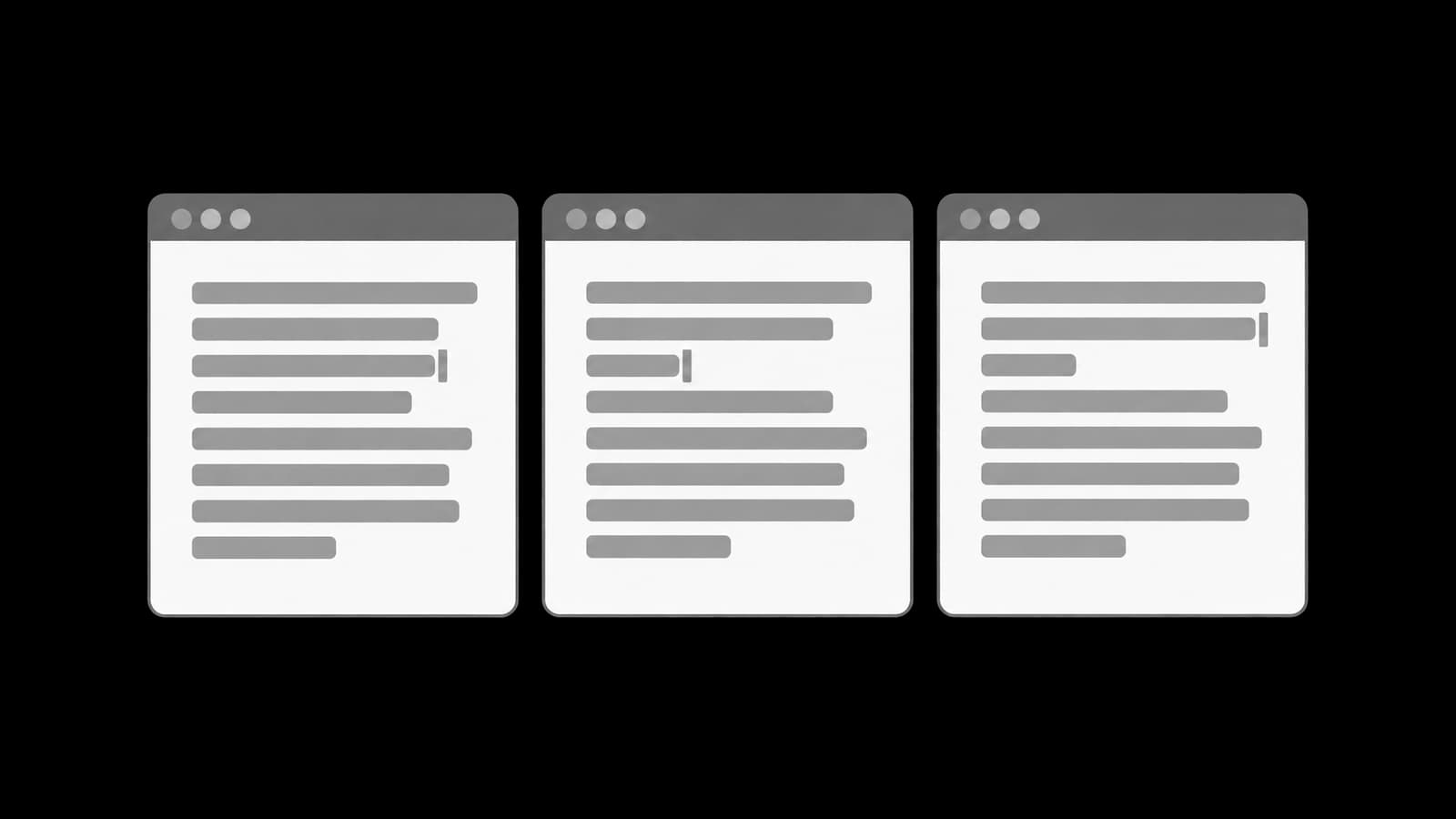
Before writing a long Thai document in Google Docs, Word, Notion, or any editor, create a small Thai test page. Use the same test text in each app. The point is not to declare a universal winner. The point is to discover which editor behaves best for your current machine, language settings, browser, document type, and export needs.
The test page should include several kinds of Thai text: a normal paragraph without spaces between words, a formal phrase, a mixed Thai-English line, a table cell, text with stacked marks, a line containing พ.ศ., and a line containing กรุงเทพฯ or ฯพณฯ. Then test typing, editing, selection, line breaking, search, and export or copy-paste if those are part of your workflow.
- Paragraph: การฝึกพิมพ์ไทยต้องตรวจทั้งความเร็วและความถูกต้อง
- Formal phrase: จึงเรียนมาเพื่อโปรดทราบ
- Mixed line: version 2 ใช้ข้อความภาษาไทยในเอกสารเดียวกัน
- Abbreviation line: กรุงเทพฯ และ ฯพณฯ
- Year line: พ.ศ. ๒๕๖๙ หรือ พ.ศ. 2569
- Reference line: ตามมาตรา ๕ แห่งกฎหมายที่เกี่ยวข้อง
- Stacked-mark line: ที่ ได้ ให้ ไม่ เป็น
Choose the editor by task
The best editor for Thai typing is not always the same for every job. A long formal document, a quick collaborative note, a project wiki, a meeting summary, and a bilingual technical draft may have different needs. One task may require strong page layout. Another may require easy collaboration. Another may require database-style organization. Thai typing quality should be evaluated together with the task, not in isolation.
Use categories instead of assumptions. Ask whether the editor breaks Thai lines acceptably, whether cursor movement feels predictable, whether Backspace behaves safely, whether selection is clean, whether spell-check helps without causing false confidence, whether find-and-replace is visible and controlled, and whether export preserves the text. For collaborative documents, also test comments, suggestions, and copied text from other contributors.
- For long Thai prose: prioritize line breaking, cursor movement, and review comfort.
- For formal documents: prioritize stable formatting, abbreviation accuracy, and export checking.
- For team notes: prioritize collaboration, copy-paste behavior, and readable mixed Thai-English text.
- For databases or wikis: prioritize search, page organization, and predictable editing in small text blocks.
- For bilingual technical writing: prioritize code-style text, English terms, Thai paragraphs, and find-and-replace behavior.
Once you know the editor’s behavior, adjust your workflow. Compose long Thai paragraphs where editing feels comfortable. Use templates for formal phrases. Avoid relying entirely on autocorrect. Test export before sending official files. When an editor has weak behavior in one category, use it with safeguards rather than assuming the typing problem is your fault.
From editor surprise to editor awareness
Thai touch typing is not finished when the learner knows the Kedmanee keys. Real writing also depends on the editor. Google Docs, Word, Notion, and other tools may differ in line breaking, cursor movement, deletion, selection, spell-check, find-and-replace, and export behavior. These differences are normal because Thai text requires decisions about segmentation and character clusters that are less visible to the writer.
The practical solution is not to fear these editors, but to test them. Create a small Thai test page. Check word wrapping, stacked syllables, Backspace, selection, Thai spell-check, and search. Verify the behavior in the version you actually use. Then choose the editor and workflow that fit the document. When the editor becomes predictable, the typist can return attention to the real goal: writing accurate, readable Thai.
Related guides

Thai has its own digits (๐–๙) and a set of symbols on the keyboard's top row — but they are not where you would expect. Here is what is there and when you actually need it.

A practice-focused guide for typing formal Thai used in official letters, announcements, circulars, references, and government-style documents. Learn how to build drills from real documents, practise fixed phrases, and prioritize accuracy over raw speed.

A practical reference and drill guide for seldom-used Thai consonants on the Kedmanee keyboard, especially the letters that live on the Shift layer. Learn which letters are obsolete, which still appear in real words, and how to practise them without turning each one into a search.